


Need a copy of what’s in a channel? You can download the channel transcript as a PDF or all shared files as a ZIP.
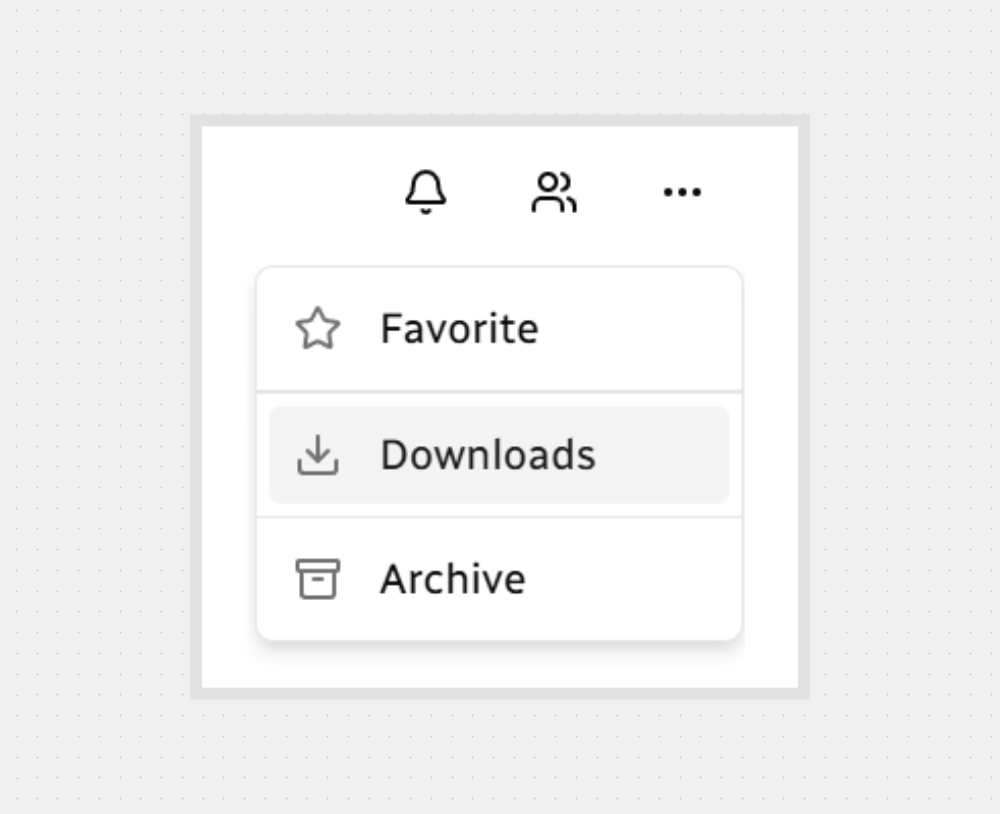
Open the Downloads Menu
To start:
In the channel header, click More options (…).
Select Downloads.
Choose What to Download
With the modal open, choose what to download:
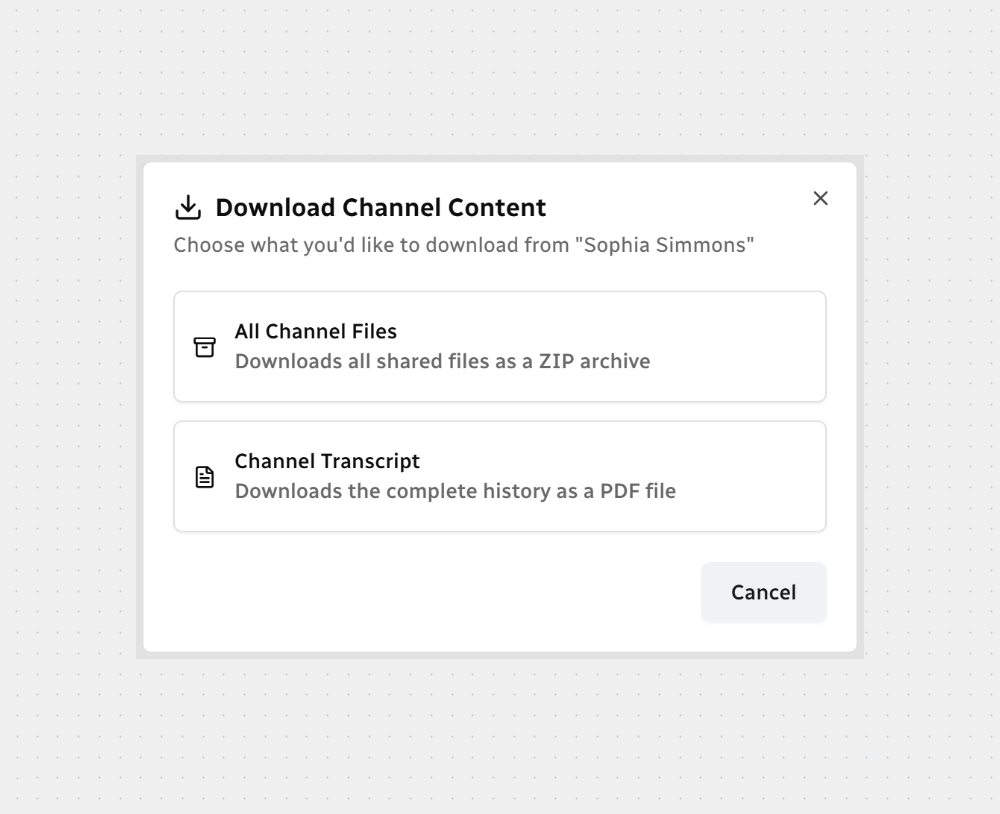
If you change your mind, click Cancel to close the modal.

Note: Each download is a snapshot — future messages or files won’t appear in a copy you already saved.
Well done! — export what you need, keep things organized, and move on.



.svg)