How to Customize Your Panels
Want to keep your workspace tidy and productive? Panels let you decide what sections show up in your workspace.
Open Panels
First, follow these steps:
Click the Settings icon in the sidebar.
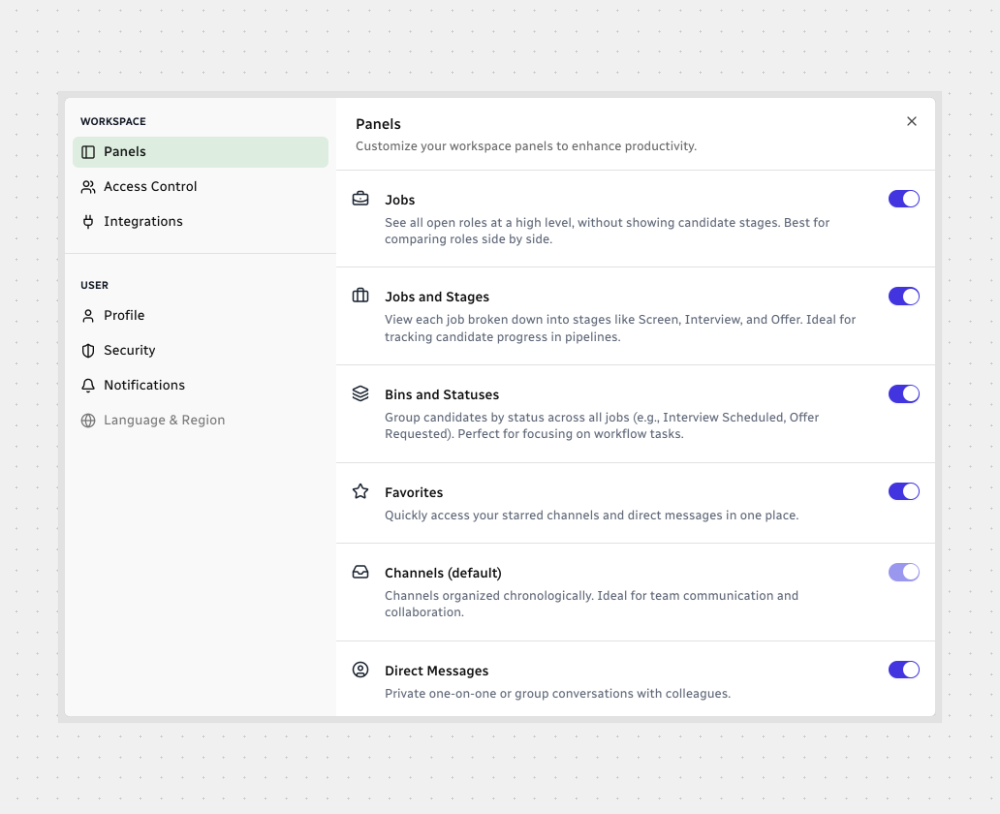
Select Panels to open the settings panel.
Available Panels
You can turn these on or off:
- Jobs — See all open roles at a glance, without showing candidate stages.
- Jobs and Stages — View each job broken down into stages like Screen, Interview, and Offer.
- Bins and Statuses — Group candidates by status across all jobs (e.g., Interview Scheduled, Offer Requested).
- Favorites — Quick access to your starred channels and direct messages.
- Channels (default) — Channels listed chronologically for team communication.
- Direct Messages — Private one-on-one or group conversations.
- Mentions — Collects all messages where you were mentioned.
- Archive — Access to archived channels and direct messages.

Note: Channels is always on by default.
That’s it! Adjust your panels once and work with a view that fits you best.






.svg)