


Channel gone quiet? Archive it — clutter goes, history stays, unarchive anytime.
Archive the Channel
To archive a channel:
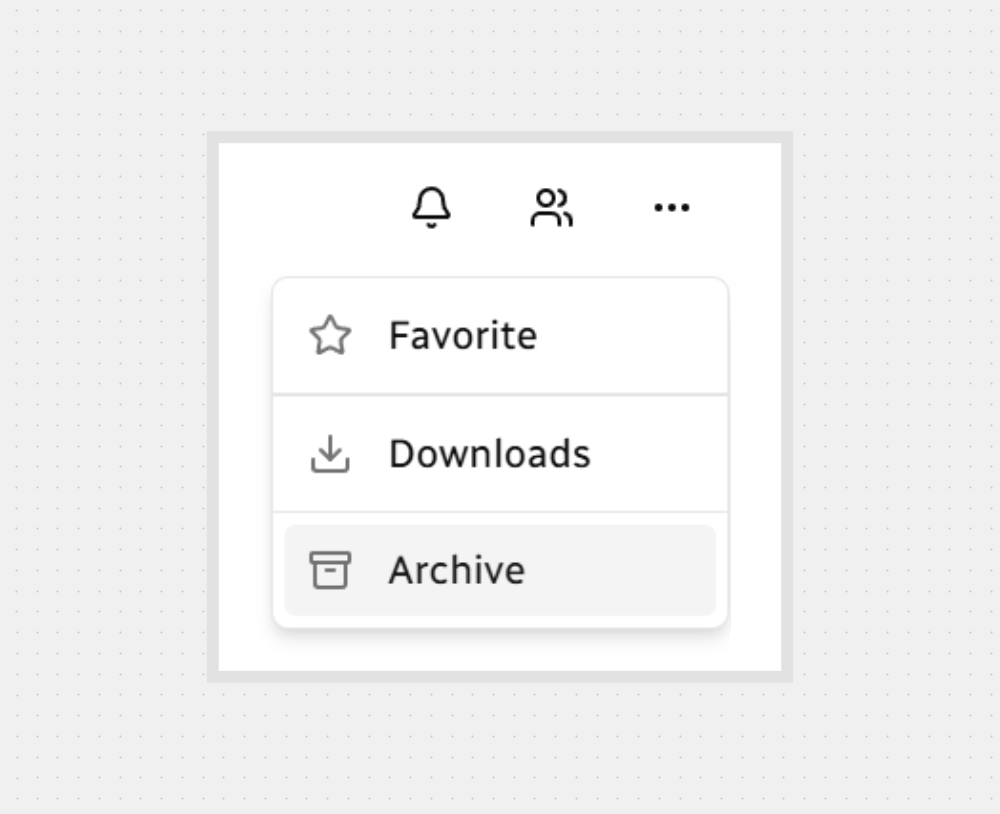
Click More options (…) in the channel header.
Select Archive.
Confirm Archiving
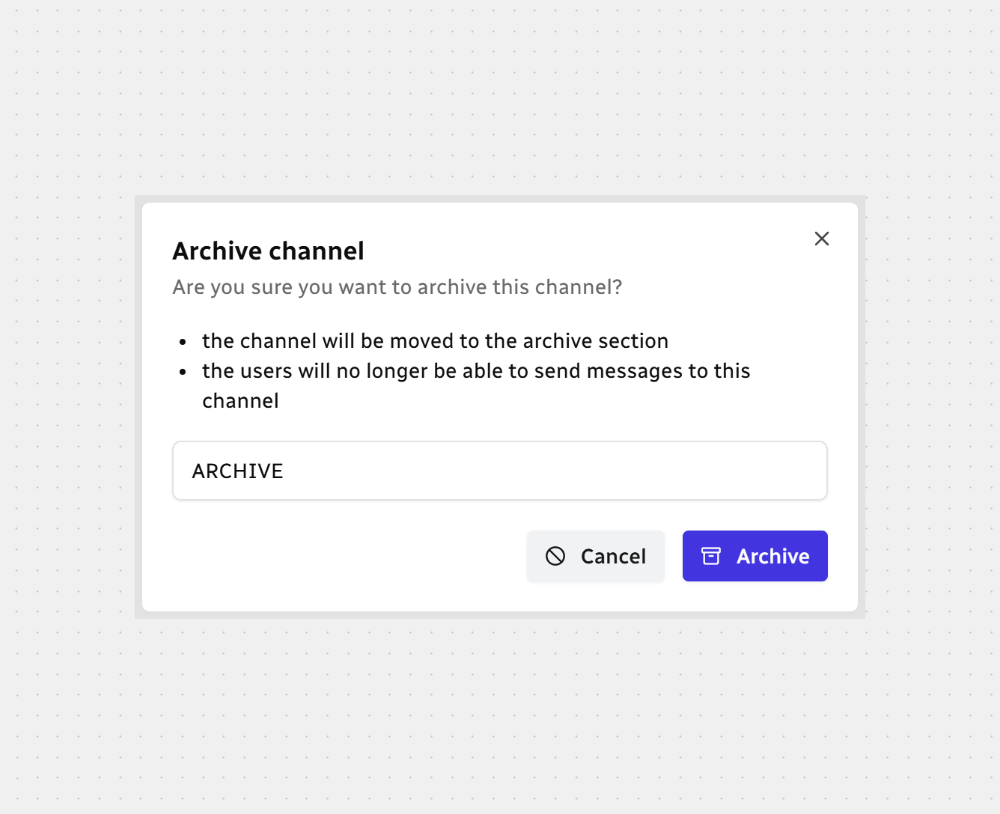
When a confirmation window opens:
You’ll see a few warnings about what archiving does.
In the Confirm field, type ARCHIVE — ALL CAPS, no spaces.
Click Archive to finish, or Cancel to keep the channel active.
Where to Find Archived Channels
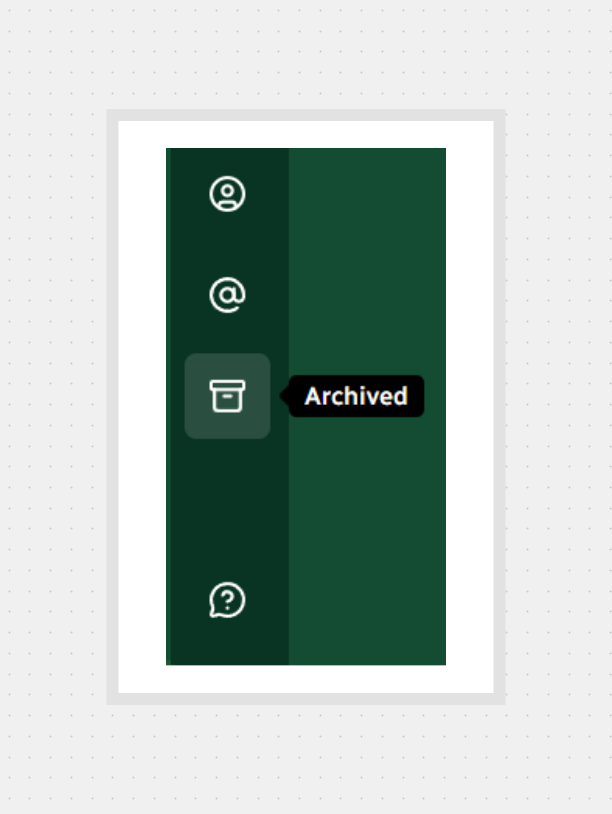
Open the Archived view from the sidebar to browse channels you’ve put on pause.
After You Archive


Note: Archiving a channel affects everyone in it — the channel moves to Archived for all members and becomes read-only.
That is it — keep things tidy, stay focused, and you’re good to go.



.svg)