


Bring the right people into a channel in a couple clicks.
Open the Members Menu
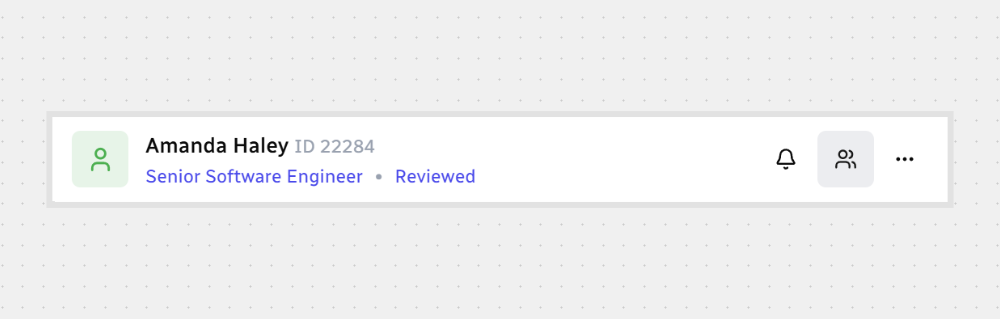
From the channel header, open the Members menu.
Click the people icon.
Add or Remove Members
For manage members:
Click Add to include someone who’s not in the channel.
Click Remove to take someone out.
Click Save to apply your changes.
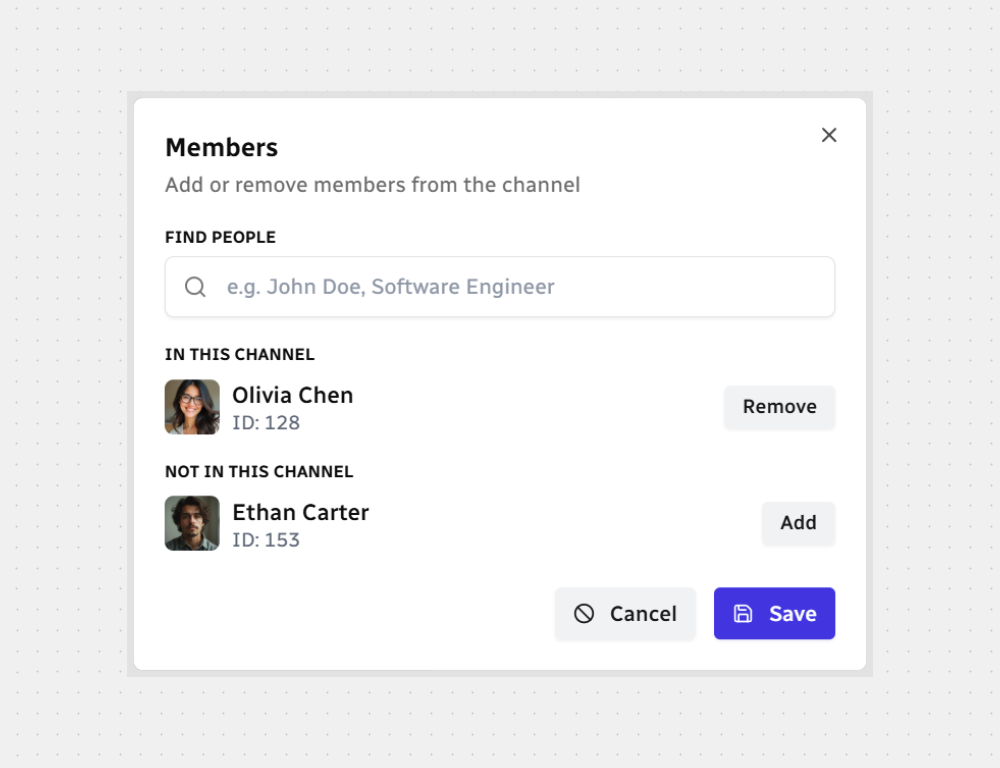
If you change your mind, click Cancel or the × to close the modal without saving.
Find People
When the Members modal opens, you’ll see suggested hiring managers right away — no search needed. You can also search any employee by name, role, or email using the search bar.
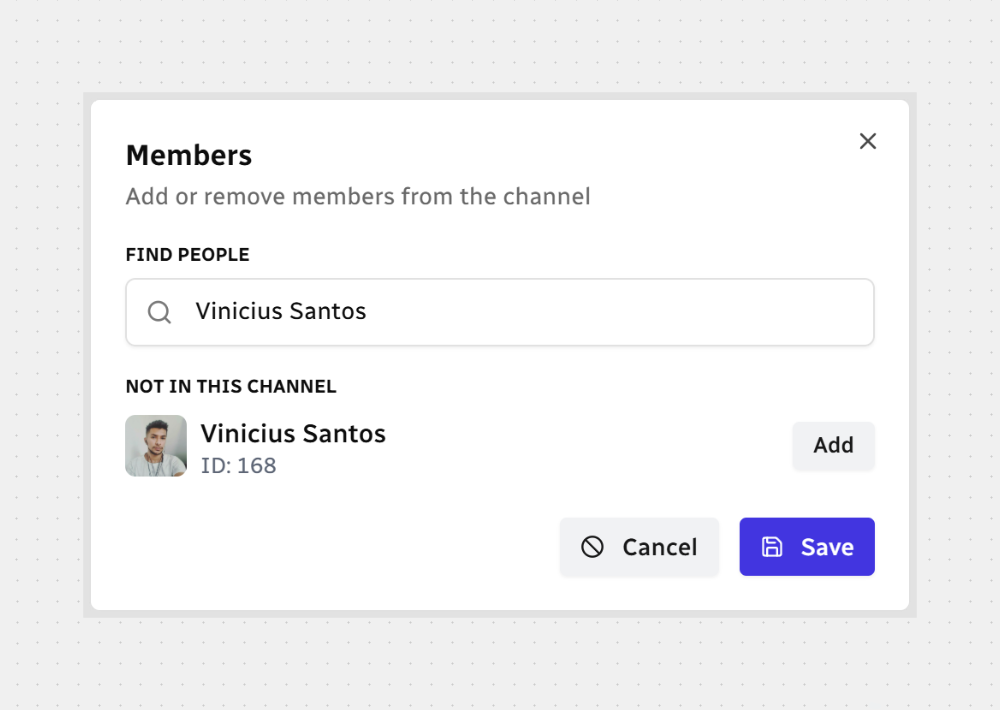

Note: You can add only workspace users (employees). Candidates aren’t channel members.
That’s it! Add your hiring team and keep the conversation in one place.



.svg)