Need to send a resume, image, or document? You can add files right inside your message — no need to leave the chat.
Adding a File
To add a file:
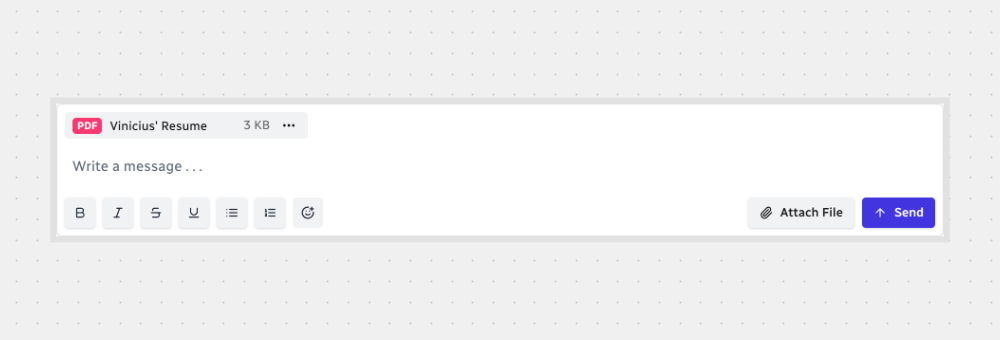
- Click Attach File below the message box.
- Choose a file from your device.
- You’ll see a small preview once it’s ready.
- Hit Send to share it.
What You Can Upload
- Documents (.pdf .doc .docx .txt .rtf .odt .tex .json .xml .yaml .yml)
- Spreadsheets (.xls .xlsx .csv .ods .xlsb)
- Images (.png .jpg .jpeg .gif .webp .svg)
- Videos (.mp4 .avi .webm)
- Audio (.mp3 .wav .ogg)
- Archives (.zip .rar .7z .gz .tar)
- Code and markup (.html .css .js .sh .py)
File Safety
- Files never leave the platform — they’re stored securely and never shared externally.
- Only people included in the conversation can view, download, or interact with the file.
You can leave these off if you don’t need them.
What It Looks Like
The file shows up like a button inside your message, showing:
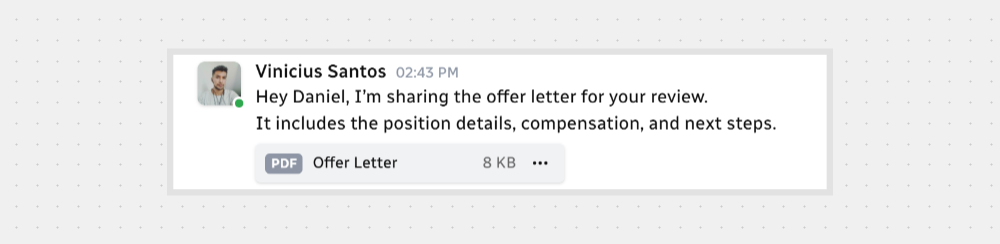
- Is displayed as a clickable button in the message
- Shows metadata like name, size, and file type
File Options
click the three dots next to the message to see quick options like:
- Open the file in your browser
- Download it to your device
- Copy Link to share inside Sync2Hire
- Rename the file — opens a window where you can type a new name and click Save to apply the change (only available if you’re the owner or have special permissions)
- Delete the file permanently — opens a confirmation window with Delete and Cancel options (only available if you’re the owner or have special permissions)
File Info (Sidebar)
The right panel opens automatically when you click on the attached file in the message.
In the right panel, you’ll find:
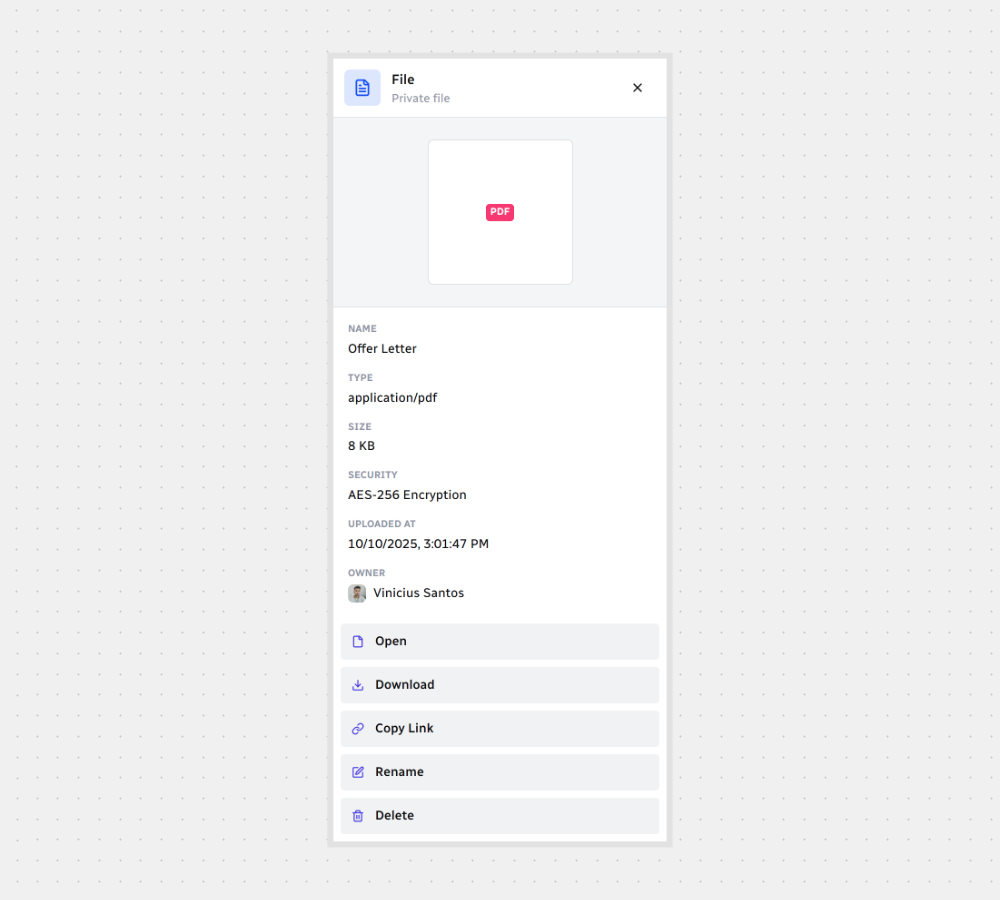
Preview
Displays a visual icon of the file (if supported).
Metadata
- File name
- File type
- File size
- Encryption
- Upload date and time
- Who uploaded it
Actions
- Open the file in your browser
- Download it to your device
- Copy Link to share inside Sync2Hire
- Rename the file — opens a window where you can type a new name and click Save to apply the change (only available if you’re the owner or have special permissions)
- Delete the file permanently — opens a confirmation window with Delete and Cancel options (only available if you’re the owner or have special permissions)
That’s it! You’ve added a file — fast and simple.






.svg)